The Payment Element is Fluveo's payment form. fluveo.js puts it on your own page, in a frame of Fluveo's, so the card number never reaches your page or your server. The form shows the payment methods of one PaymentIntent, checks what the buyer types and shows each error where it belongs.
Load it with a script tag, or with the two npm packages when you use a bundler or React. Custom checkout builds a whole checkout around it.
Compatible APIs#
The form works with the PaymentIntents API. Your server creates one PaymentIntent per order with its secret key and gives the page only the client_secret. Accept a payment explains the PaymentIntent and its states, and Custom checkout has the server route to copy.
| Your code | The form |
|---|---|
Creates the PaymentIntent on your server and passes its client_secret to fluveo.elements(). | Reads the PaymentIntent and shows its payment methods. |
| Mounts the form in a container of your page. | Draws its fields in a frame, checks each one and says what to fix. |
Calls fluveo.confirmPayment() when the buyer presses your Pay button. | Sends the card to Fluveo and confirms the PaymentIntent, through 3D Secure when the card asks for it. |
Marks the order paid on the payment_intent.succeeded webhook. | Nothing: the page's result is only for the buyer. |
| Or mounts the form from an amount and a currency, and creates the PaymentIntent when the buyer presses Pay. | Shows before a PaymentIntent exists, and confirms the one your code passes then. |
The last row is the second way to use the form: see Mount the form before its PaymentIntent.
Payment methods#
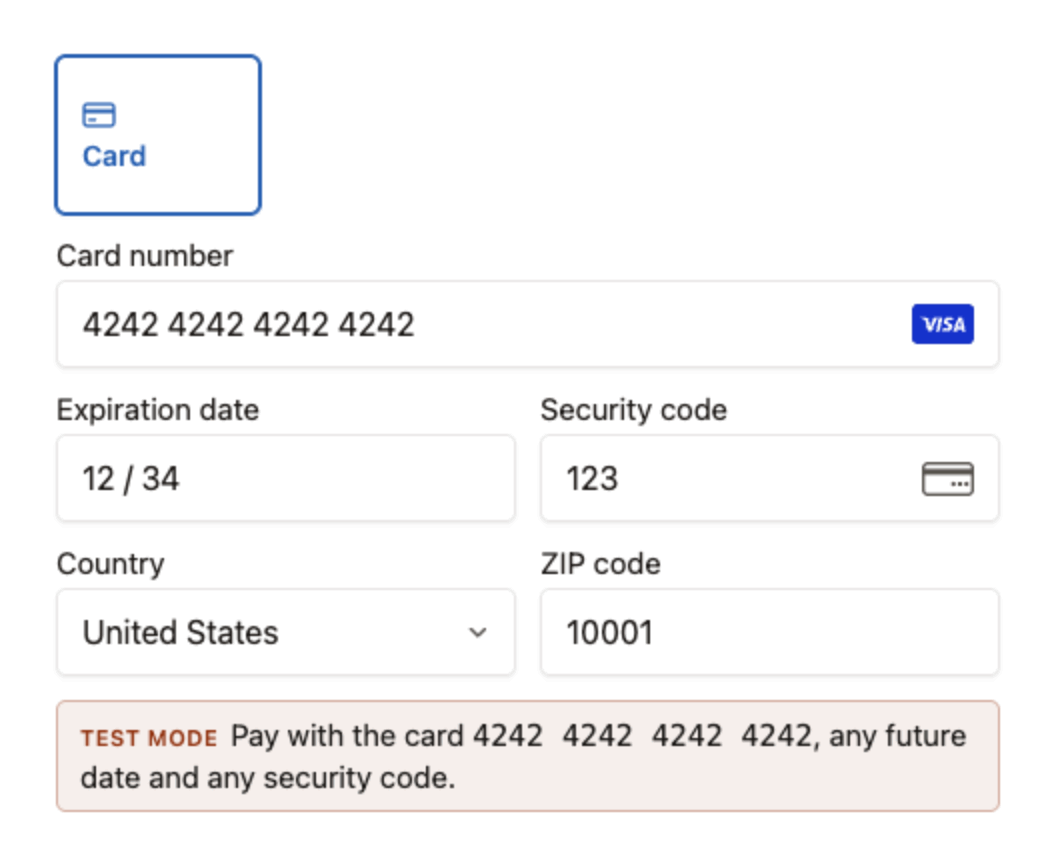
The form shows one payment method, the card. It asks for the card number, the expiration date, the security code, the country and, where cards have one, the postal code.
A PaymentIntent's payment_method_types says which methods it accepts. The form reads that list when it mounts and, with a test key, prints it to the browser console, as Test mode describes. Every other method is taken outside the form:
| Method | Where it is taken |
|---|---|
| Card | In this form, and on the hosted checkout page. |
| Pix | Your server creates it and your page shows its code. |
| Boleto | Your server issues it and your page shows its line and its PDF. |
| Apple Pay | Your page sends the buyer's approval to Fluveo as a card token. |
Layout#
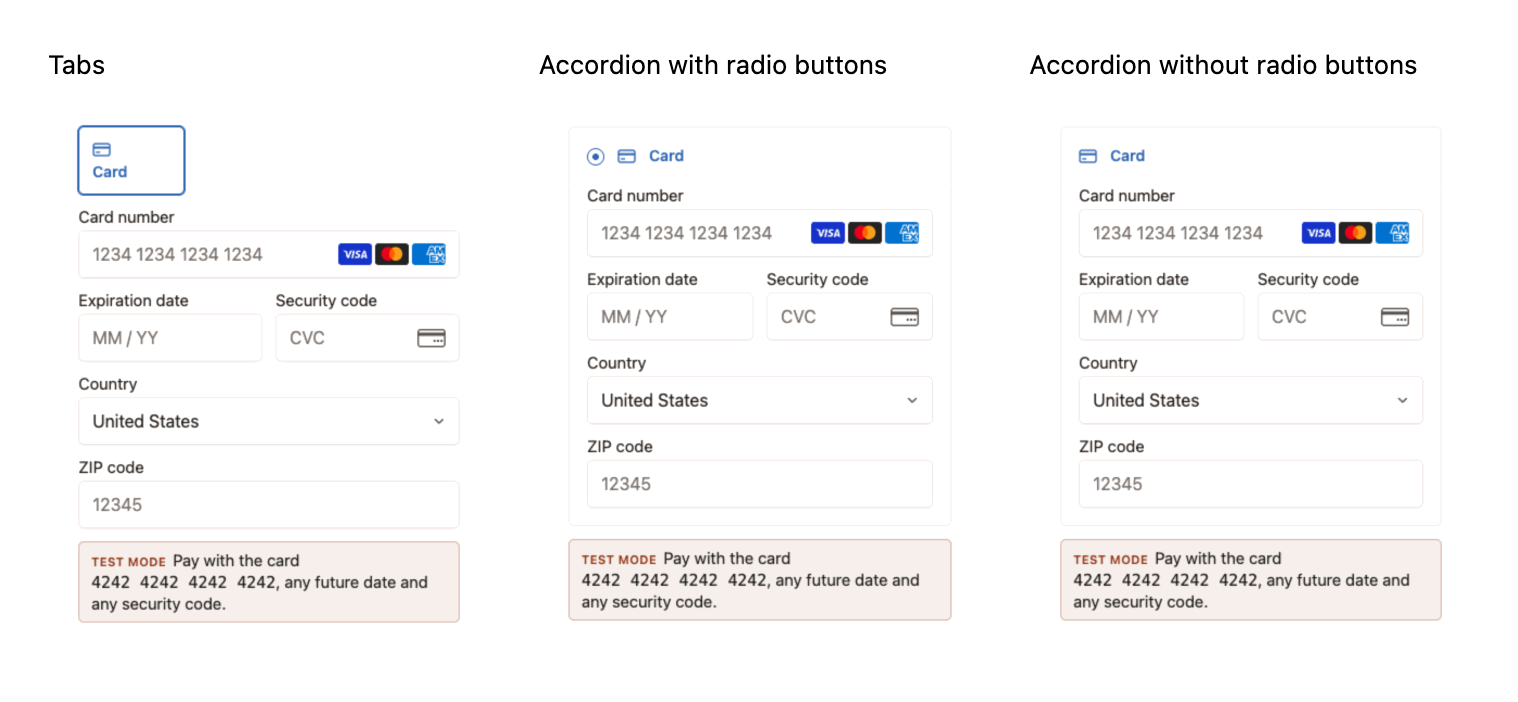
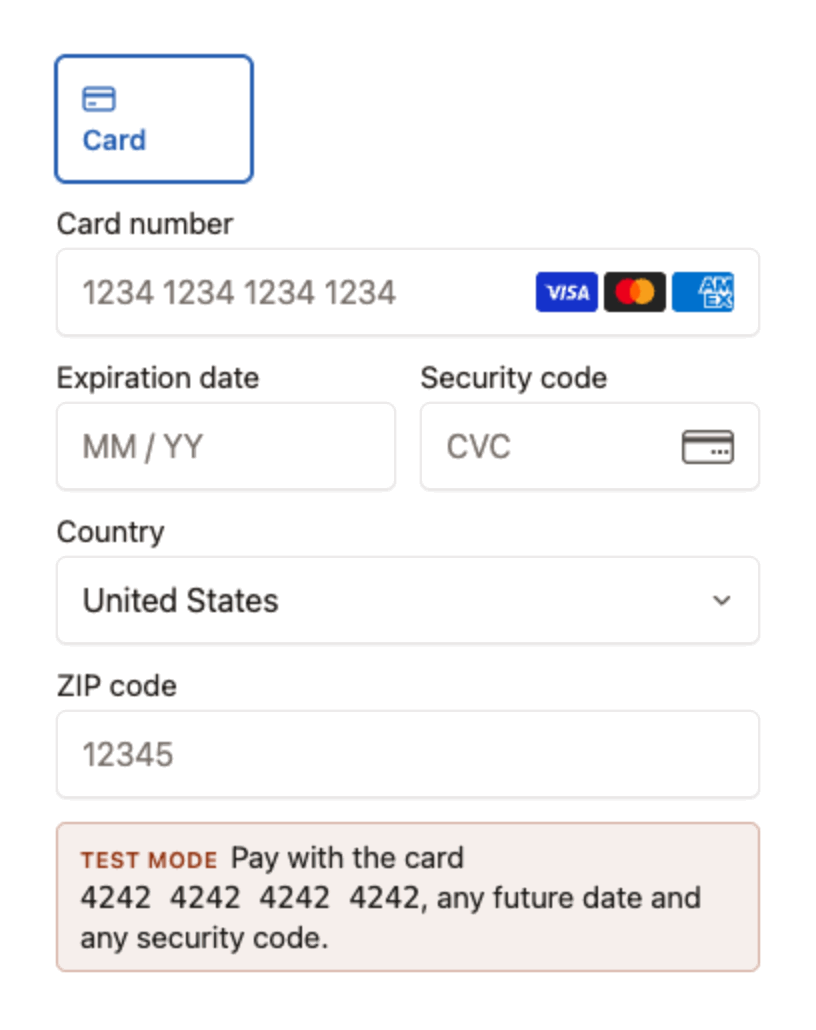
The form lists its payment methods as tabs above the fields, or as an accordion whose open row holds the fields. Choose with the layout option of elements.create("payment").
Tabs
Each payment method is a box above the fields, and the open one is outlined. Tabs are the default, so layout can be left out.
const fluveo = Fluveo("pk_test_...");
const elements = fluveo.elements({ clientSecret });
const paymentElement = elements.create("payment", {
  layout: { type: "tabs" },
});
paymentElement.mount("#payment-element");
That is the whole script, once the page has its clientSecret. Custom checkout has the page around it.
Accordion with radio buttons
The methods are rows, and the open row holds the fields. radios: "always" draws a radio button in each row, also when the form has one method. layout has four parts: type, defaultCollapsed, radios and spacedAccordionItems.
const fluveo = Fluveo("pk_test_...");
const elements = fluveo.elements({ clientSecret });
const paymentElement = elements.create("payment", {
  layout: { type: "accordion", radios: "always" },
});
paymentElement.mount("#payment-element");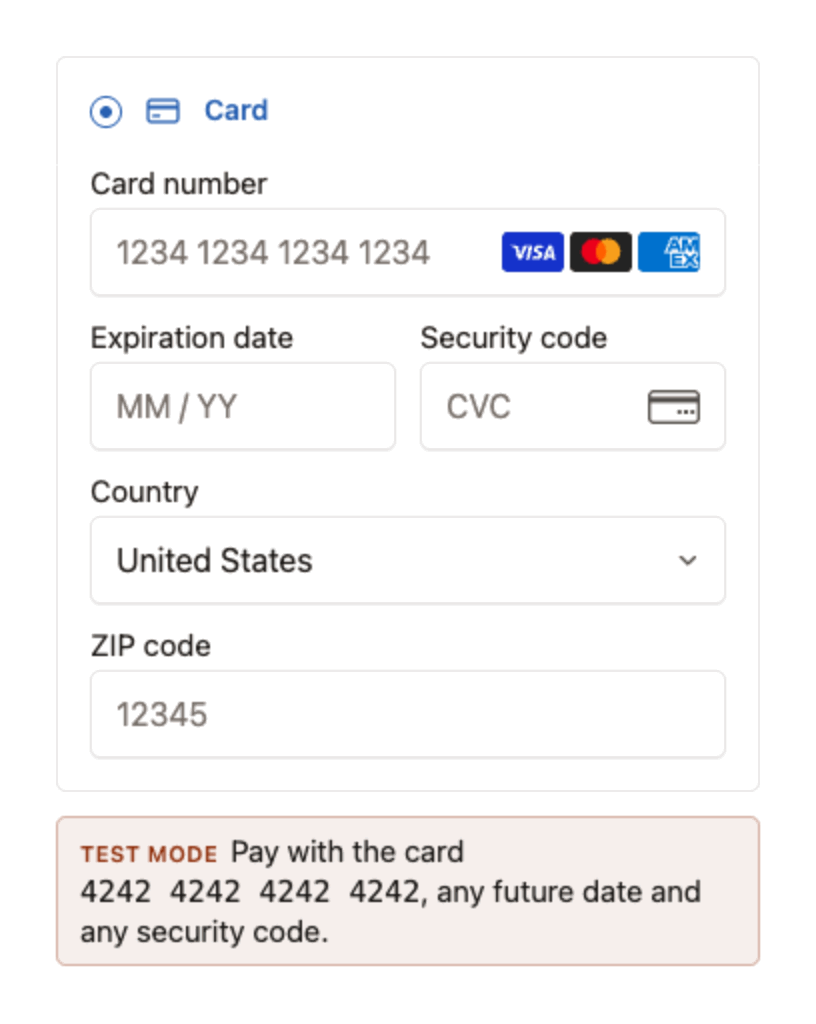
Accordion without radio buttons
radios: "never" leaves the radio button out of every row. An accordion with one method draws none either when layout has no radios.
const fluveo = Fluveo("pk_test_...");
const elements = fluveo.elements({ clientSecret });
const paymentElement = elements.create("payment", {
  layout: { type: "accordion", radios: "never" },
});
paymentElement.mount("#payment-element");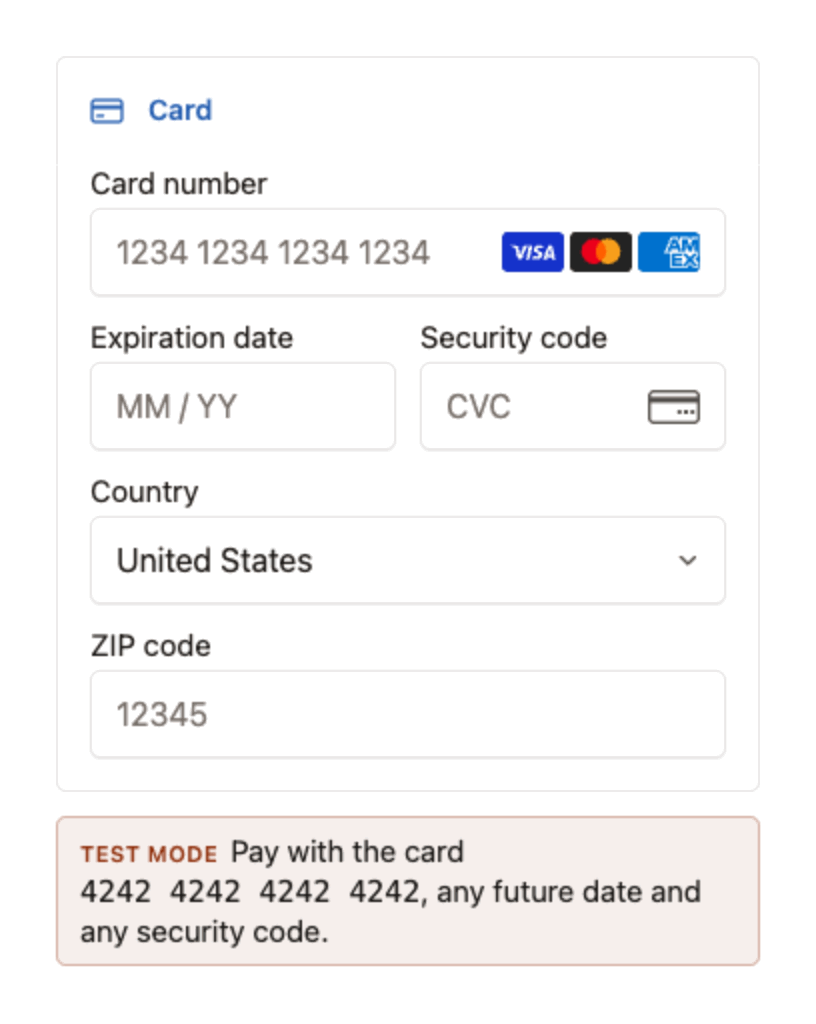
Appearance#
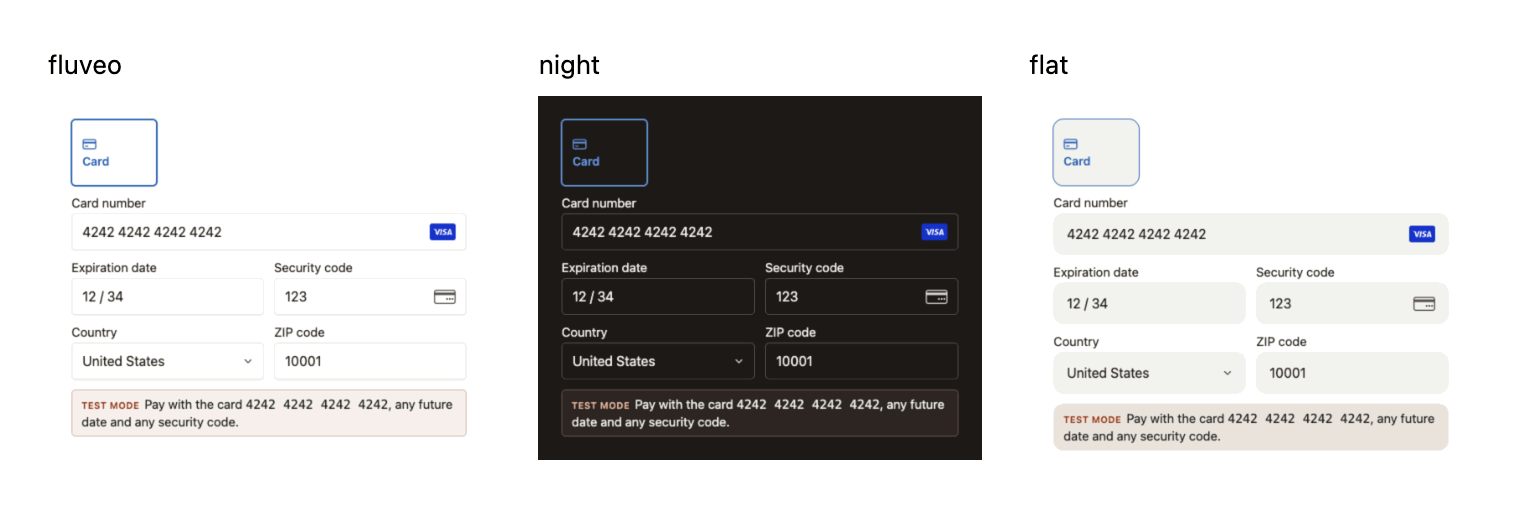
The form is a frame, so the CSS of your page does not reach it: its look is set in code, with the appearance option of fluveo.elements(). A theme is a whole look with a name. A variable changes one value of the theme, such as the main colour, the font or the corner radius, and every part of the form that uses that value follows it.
const fluveo = Fluveo("pk_test_...");
const elements = fluveo.elements({
  clientSecret,
  appearance: {
    theme: "flat",
    variables: { colorPrimary: "#0f766e" },
  },
});
const paymentElement = elements.create("payment");
paymentElement.mount("#payment-element");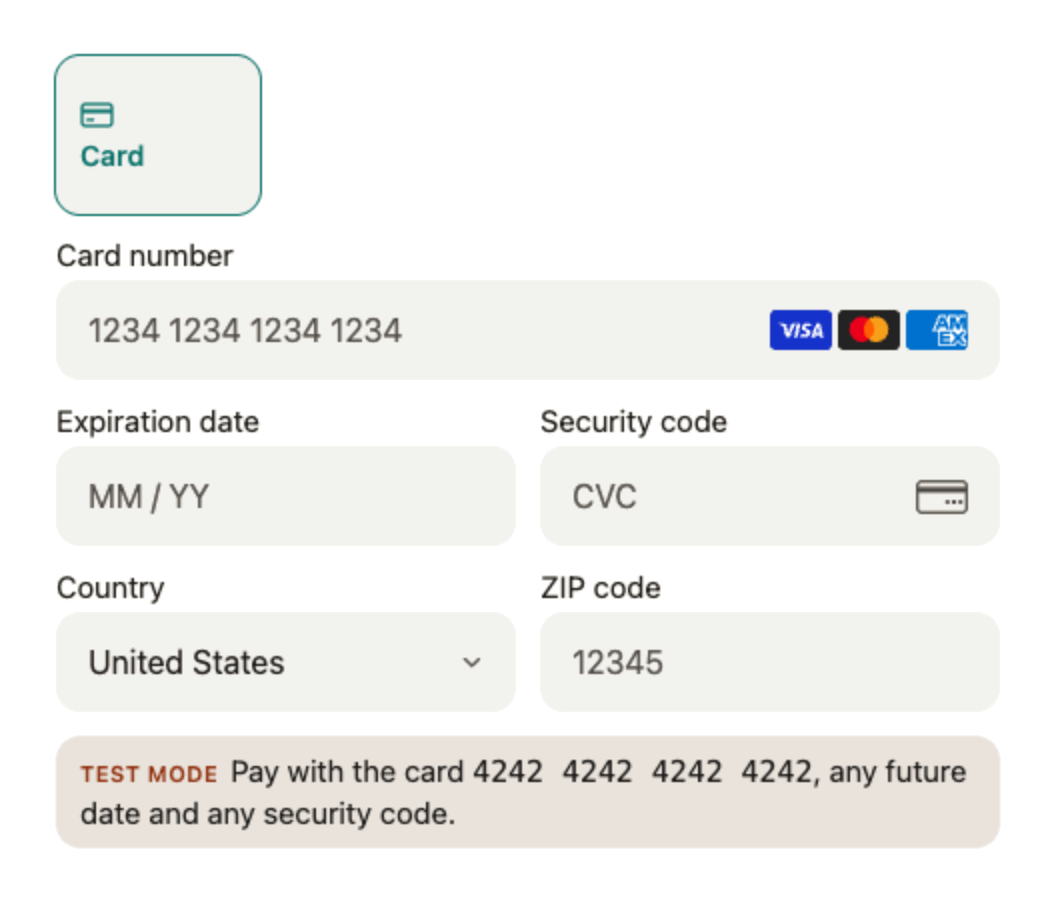
Appearance shows each theme and gives every variable's default in each theme.
Options#
Every option is optional: the form works with clientSecret alone. appearance, locale and loader go to fluveo.elements(). layout, fields and defaultValues go to elements.create("payment").
const fluveo = Fluveo("pk_test_...");
const elements = fluveo.elements({
  clientSecret,
  locale: "en",
  loader: "always",
});
const paymentElement = elements.create("payment", {
  layout: "accordion",
  defaultValues: { billingDetails: { address: { country: "CA" } } },
});
paymentElement.mount("#payment-element");| Option | What it does |
|---|---|
| appearance | Sets the theme and the variables of the form's look. |
| locale | Sets the language of the form. Left out, it follows the buyer's browser. |
| loader | Shows or hides the placeholder while the form loads. |
| layout | Lists the payment methods as tabs or as an accordion. |
| fields | Hides the country or the postal code when your page already asked for it. |
| defaultValues | Sets the country and the postal code the form opens with. |
Errors#
The form shows the buyer's errors by itself, each one once:
- a field that is incomplete or not valid, or that the API refused, under that field;
- a declined card, right under the card number;
- a form that could not load, in place of the fields.
With inputs: "condensed" in appearance, the fields are joined in one block, and the errors of the fields and of the card show under it: the fields' in their order, then the card's.
Its messages are in English and in Brazilian Portuguese, as locale picks. Where the form has no sentence of its own, it shows the API's message.
Your code reads the rest: confirmPayment() resolves with the error object, and Errors lists the API's codes. The form shows no message when the answer to a payment did not come back, so show that error's message on your page. A mistake in your code throws at the call; one the form learns only at the press, such as currency_mismatch, resolves as { error } of the type invalid_request_error. The options throw option_not_supported, appearance_value_invalid and billing_details_missing.
Type a test card into the form to see a decline or 3D Secure.
With other elements#
The Payment Element is the one element of fluveo.js: elements.create() takes "payment" and no other name. The rest of the checkout is your own page: the e-mail field, the address, the cart and the Pay button.
Pass what your page already knows about the buyer:
| Your page has | Pass it as |
|---|---|
| The buyer's name, e-mail or phone | confirmParams, in the billing_details of payment_method_data. |
| The country or the postal code, asked in your own address fields | The address of that billing_details, with that field set to "never" in fields so the form does not ask again. |
| A country or a postal code to start from | defaultValues. The buyer may still change it. |
Move from the hosted checkout#
Hosted checkout sends the buyer to a page of Fluveo's. Move when the payment belongs inside your own page: your layout around the form, your cart beside it, and a declined card that leaves the buyer where they are. The hosted page also shows Pix and Boleto, so keep it for an order paid that way.
Your server keeps its secret key, its Idempotency-Key and its webhook endpoint. It creates a PaymentIntent in place of a Checkout Session, gives the page the client_secret and marks the order paid on payment_intent.succeeded, which a session's payment already sends. Your page gains the form and the calls that mount it and confirm the payment: Custom checkout has every file.